

IPTV Setup Guide

IPTV Setup Guide, IPTV Services

How to Choose the Right Streaming Service for Your Home in 2026

Home entertainment has changed dramatically over the last few years. Viewers no longer want to be tied to rigid viewing schedules, long contracts, or limited choices. Today, people want flexibility, convenience, better device compatibility, and a smoother overall experience. That is why more households are paying closer attention to the features that really matter when choosing a streaming service. But with so many options available, how do you decide which one is right for your home? In this guide, we will break down the key factors to consider before choosing a streaming service in 2026. 1. Look for a Wide Variety of Content The first thing most people care about is content. A good streaming experience should give you access to the types of entertainment you actually enjoy watching. For some households, that means live TV. For others, it means movies, series, sports, documentaries, kids’ content, or international programming. Before signing up, ask yourself: The best service for you is not necessarily the one with the biggest marketing claims. It is the one that fits your viewing habits. 2. Check Device Compatibility A streaming service should work on the devices you already use. Many people now watch content across multiple screens, including: A strong platform should offer a smooth experience across modern devices, with simple setup and easy navigation. There is no point paying for a service that becomes frustrating the moment you try to install it. Convenience matters. The easier it is to watch on your preferred screen, the better the overall experience will be. 3. Streaming Quality Matters More Than Ever No one wants blurry playback, constant lag, or streams that keep freezing during important moments. Whether you are watching a film, a major sports event, or a family series in the evening, quality plays a big role in satisfaction. Look for services that are designed to support modern viewing expectations, including HD or higher-quality playback where available. A good entertainment experience should feel smooth, stable, and enjoyable. If the quality is inconsistent, the value quickly drops. 4. Reliability Is Just as Important as Content A platform may promise a lot, but reliability is what keeps viewers satisfied over time. You want a service that performs well during normal use and also during peak times, such as evenings, weekends, or major events. A reliable service should offer a stable experience, quick access, and fewer interruptions. When evaluating your options, pay attention to signs of overall service quality, including: The best entertainment platforms focus not only on what they offer, but also on how reliably they deliver it. 5. Consider Ease of Setup Not everyone wants a complicated installation process. For many users, a streaming platform should be simple to start using. Clear instructions, straightforward activation, and support when needed can make a major difference. A strong service should not require technical expertise just to get started. The process should feel accessible for both first-time users and people who are already familiar with streaming apps and devices. The less friction there is at the beginning, the more likely you are to enjoy the service long term. 6. Think About Value, Not Just Price Price matters, but value matters more. The cheapest option is not always the best, and the most expensive one is not always worth it. The right choice depends on what you get in return for what you pay. A service offers better value when it combines several important factors: When comparing services, avoid focusing only on the monthly or yearly fee. Look at the full experience. 7. Customer Support Can Save You Time and Stress Even the best platforms sometimes require setup help or basic troubleshooting. That is why support should never be ignored. Responsive customer service helps users solve issues faster and keeps the experience smooth. Good support is especially important for: Fast, clear support creates trust and makes the platform feel more dependable. 8. Choose a Service That Fits Your Lifestyle The ideal streaming service is different for every household. A sports fan may prioritise live events and match-day reliability. A family may care more about variety and device access. Someone who travels may focus on flexible viewing across mobile devices. The key is to choose a service that matches your routine, preferences, and expectations. That is what makes entertainment feel easy rather than complicated. Final Thoughts Choosing the right streaming service in 2026 is about more than just finding something to watch. It is about creating a better entertainment experience at home. The right platform should offer convenience, quality, flexibility, and a viewing experience that suits your lifestyle. Before making a decision, take a closer look at content variety, device support, streaming quality, ease of use, reliability, and overall value. When those elements come together, your entertainment setup becomes simpler, more enjoyable, and much more rewarding. Call to ActionLooking for a smoother and more flexible way to enjoy entertainment at home? Explore your options carefully, compare features that matter most to you, and choose a service that truly fits your viewing needs.

IPTV Setup Guide

Smart TVs (ALL)​

Blog – Smart TVs (ALL)​ For Samsung Smart TV Step 1 : Press the Smart Hub button from your remote. Step 2 : Search for the Smarters Pro to install. Step 3 : Log in the Application with your subscription details i.e. Username, Password, Portal URL. For LG Smart TV Step 1 : Press the Home button on the remote & Go to LG Content Store. Step 2 : Search for the Smarters Pro to install. Step 3 : Log in the Application with your subscription details i.e. Username, Password, Portal URL. Great! You now have the IPTV Smarters app When you run the IPTV Smarters app for the first time, Terms of Use will be the first window. Scroll down and click Accept.   You can add IPTV channels to IPTV Smarters in two ways: Setup via Xtream Codes API. Setup via Playlist.   Setup IPTV Smarters via Xtream Codes API We recommend setup via Xtream Codes API because you will have the Catchup feature this way and also do not need to add any EPG URL (it will load automatically).   STEP 1: Open the app once downloaded and click on “Add user” then click on “Login with Xtream Codes API“.     STEP 2: In this step, in the first box, select any name you want. On the second and third boxes, enter the “Username” and the “Password”  and the server URL that we sent you via Whatsapp or Email or Chat Now Click on “ADD USER” to proceed to the next section.   STEP 3: Wait some seconds.     STEP 4: Now click on the “Live TV” icon as depicted in the image via a red arrow.     Setup IPTV Smarters via Playlist If you don’t have an Xtream Code API, you can use an M3U URL and choose to Load Your Playlist or File URL.   STEP 1: Open the app once downloaded and click on “Add user” then click on “Login with Playlist“.     STEP 2: In this step, in the first box, select any name you want for example “IPTV Playlist”.Select “M3U URL” and enter the M3U URL that we sent you via WhatsApp.     STEP 4: Now click on the “Live TV” icon, select channels group then the channel you want to watch.

IPTV Setup Guide

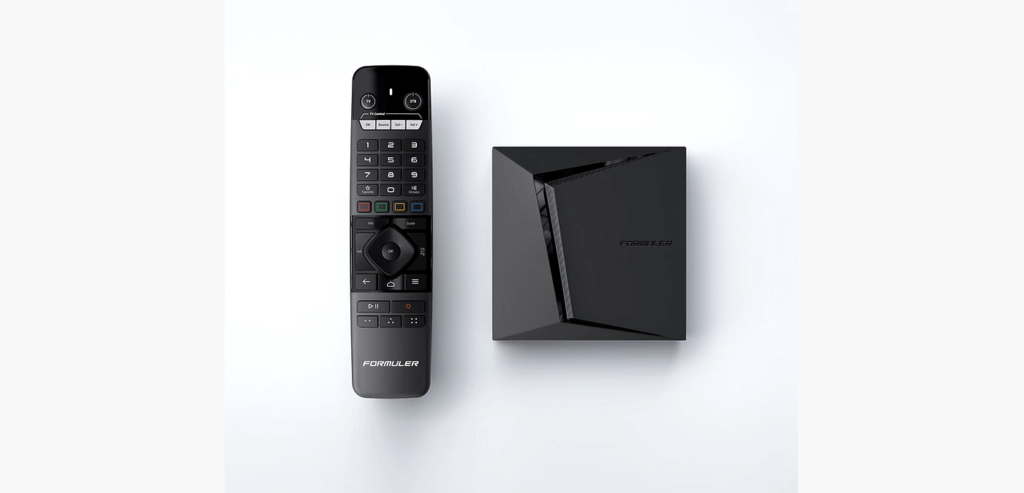
Formuler Box​

Blog – Formuler Box​ FormulerZ boxes are one of the best devices for watching IPTV.The most important advantage of FormulerZ boxes is supporting both MAC base Portal System and M3U base Playlist.   FormulerZ8 is the last version of Formuler boxes with MYTV Online 2 application which support 4K Ultra HD streaming,In this tutorial, we are going to show you how to bring IPTV channels to your MYTV Online 2 on FormulerZ8. This setup guide can be used for all models of Formuler devices/boxes:   STEP 1: Open the exclusive application for watching IPTV in Formuler boxes “MYTV Online 2”.If you don’t have this application on your device you can download it from the Google Play store.     STEP 2: You can see the box’s MAC in the top right of this page.Please note, this MAC address must be given to your IPTV provider. Here you can see the two options, select “Add Portal” to set the device as a MAC based device like MAG boxes.     STEP 3: Enter Portal Nickname (Example: MYIPTV).Enter IPTV Portal URL you get from your IPTV provider and click on “CONNECT”. You can ask for a portal URL from your IPTV service provider.     STEP 4: Successful Connection! You receive all channels associated with your subscriptionPlease note, this might take a little time.

IPTV Setup Guide

iPhones – iPADs​

Blog – iPhones – iPADs​ Step 1 :  For IOS: https://apps.apple.com/in/app/smarters-player-lite/id1628995509   And Install the Application Smarters Player Lite Great! You now have the IPTV Smarters app   Step 2: Open the app once downloaded and Enter the login details.   You can add IPTV channels to IPTV Smarters in two ways: Setup via Xtream Codes API. Setup via Playlist.   Setup IPTV Smarters via Xtream Codes API We recommend setup via Xtream Codes API because you will have the Catchup feature this way and also do not need to add any EPG URL (it will load automatically).   STEP 1: Open the app once downloaded and click on “Add user” then click on “Login with Xtream Codes API“.     STEP 2: In this step, in the first box, select any name you want. On the second and third boxes, enter the “Username” and the “Password” and the server URL that we sent you via WhatsApp. Now Click on “ADD USER” to proceed to the next section.   STEP 3: Wait some seconds.     STEP 4: Now click on the “Live TV” icon as depicted in the image via a red arrow.     Setup IPTV Smarters via Playlist If you don’t have an Xtream Code API, you can use an M3U URL and choose to Load Your Playlist or File URL.   STEP 1: Open the app once downloaded and click on “Add user” then click on “Login with Playlist“.     STEP 2: In this step, in the first box, select any name you want for example “IPTV Playlist”.Select “M3U URL” and enter the M3U URL that we sent you via WhatsApp.     STEP 4: Now click on the “Live TV” icon, select channels group then the channel you want to watch.

IPTV Setup Guide

Firestick – Firebox – FireTV​

Blog – Firestick – Firebox – FireTV​ Even though IPTV Smarters is listed on Google Play Store and Apple App Store for Android and iOS mobiles respectively, Amazon Store does not host it. Therefore, if you want it on your FireStick, you will need to sideload it.   This video will show you exactly how to install and set up your IPTV:    

IPTV Setup Guide

Windows PCs​

Blog – Windows PCs​ Step 1 :  For Windows: https://www.iptvsmarters.com/download?download=windows_app  And Install the Application IPTV Smarters Pro For Mac: https://www.iptvsmarters.com/download/?download=mac    And Install the Application IPTV Smarters Pro   Step 2 : Login to the application with your subscription details ( Get details from your service provider) Great! You now have the IPTV Smarters app When you run the IPTV Smarters app for the first time, Terms of Use will be the first window. Scroll down and click Accept.   You can add IPTV channels to IPTV Smarters in two ways: Setup via Xtream Codes API. Setup via Playlist.   Setup IPTV Smarters via Xtream Codes API We recommend setup via Xtream Codes API because you will have the Catchup feature this way and also do not need to add any EPG URL (it will load automatically).   STEP 1: Open the app once downloaded and click on “Add user” then click on “Login with Xtream Codes API“.     STEP 2: In this step, in the first box, select any name you want. On the second and third boxes, enter the “Username” and the “Password” and the server URL that we sent you via WhatsApp. Now Click on “ADD USER” to proceed to the next section.   STEP 3: Wait some seconds.   STEP 4: Now click on the “Live TV” icon as depicted in the image via a red arrow.     Setup IPTV Smarters via Playlist If you don’t have an Xtream Code API, you can use an M3U URL and choose to Load Your Playlist or File URL.   STEP 1: Open the app once downloaded and click on “Add user” then click on “Login with Playlist“.     STEP 2: In this step, in the first box, select any name you want for example “IPTV Playlist”.Select “M3U URL” and enter the M3U URL that we sent you via WhatsApp.     STEP 4: Now click on the “Live TV” icon, select channels group then the channel you want to watch.

IPTV Setup Guide

Android (Phones,Boxes,TVs)​

Blog – Android (Phones,Boxes,TVs)​ Step 1 :  For Andriod: https://www.iptvsmarters.com/smarters.apk And Install the Application IPTV Smarters Pro Great! You now have the IPTV Smarters app   Step 2: Open the app once downloaded and Enter the login details.   You can add IPTV channels to IPTV Smarters in two ways: Setup via Xtream Codes API. Setup via Playlist.   Setup IPTV Smarters via Xtream Codes API We recommend setup via Xtream Codes API because you will have the Catchup feature this way and also do not need to add any EPG URL (it will load automatically).   STEP 1: Open the app once downloaded and click on “Add user” then click on “Login with Xtream Codes API“.     STEP 2: In this step, in the first box, select any name you want. On the second and third boxes, enter the “Username” and the “Password” and the server URL that we sent you via WhatsApp. Now Click on “ADD USER” to proceed to the next section.   STEP 3: Wait some seconds.     STEP 4: Now click on the “Live TV” icon as depicted in the image via a red arrow.     Setup IPTV Smarters via Playlist If you don’t have an Xtream Code API, you can use an M3U URL and choose to Load Your Playlist or File URL.   STEP 1: Open the app once downloaded and click on “Add user” then click on “Login with Playlist“.     STEP 2: In this step, in the first box, select any name you want for example “IPTV Playlist”.Select “M3U URL” and enter the M3U URL that we sent you via WhatsApp.     STEP 4: Now click on the “Live TV” icon, select channels group then the channel you want to watch.

Scroll to Top